

MAITO can extract and translate entire web pages, perfect for reading foreign news articles, blogs, documentation, and more.
What Is Website Translation?
Website translation lets you:
- Enter a URL
- MAITO fetches the page content
- Extracts text automatically
- Translates the entire page
- Displays result in MAITO window
Best For: Articles, blogs, documentation, news sites, forums.
DeepL Required
Website translation currently requires DeepL Cloud Translation. Local AI only supports text translation. However, you can copy text from web pages and translate it using Local AI or the global hotkey.
Prerequisites
- DeepL API key configured - Get API Key
- DeepL engine active - Switch to DeepL
- Internet connection - Required to fetch web pages
- Sufficient DeepL quota - Web pages can be long (2,000-10,000+ characters)
Step-by-Step Guide
1. Open Webpage Tab
- Launch MAITO
- Click the Webpage tab
- Ensure DeepL is your active engine
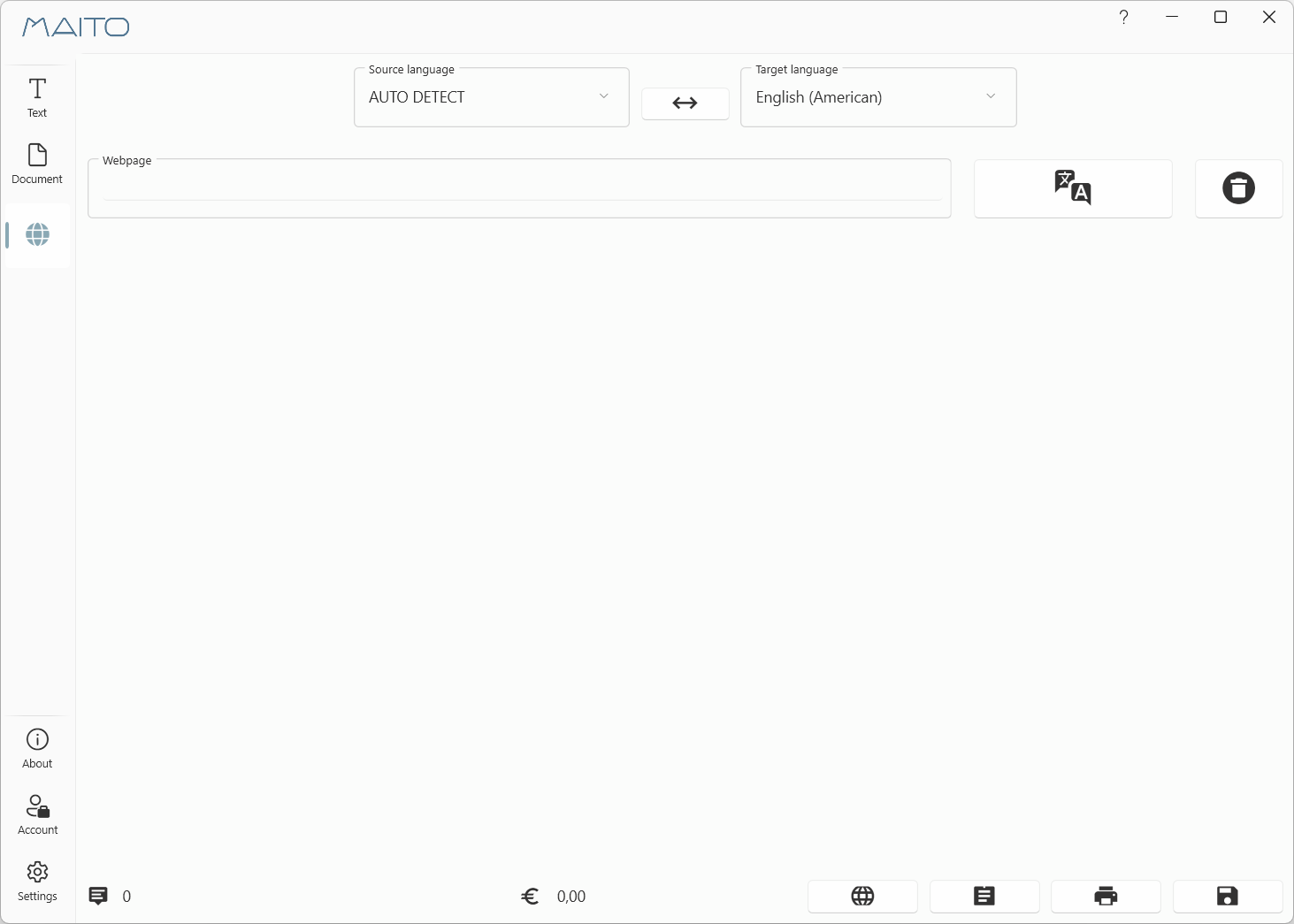
2. Select Languages
- Choose source language (or use Auto Detect - recommended)
- Choose target language
- Languages are remembered for next time
3. Enter Website URL
- Copy the URL from your web browser
- Paste it into the Website URL field in MAITO
- Verify the URL is complete (including
https://)
Example URLs:
https://www.example.com/articlehttps://blog.example.com/post/123https://docs.example.com/guide
Copy URL from Browser
In your browser:
- Click the address bar
- Ctrl+C to copy the complete URL
- Paste into MAITO
4. Start Translation
- Review the URL is correct
- Check languages are set appropriately
- Click Translate Webpage button
- Wait for extraction and translation
5. View Translated Content
- MAITO fetches the page
- Extracts text content
- Translates with DeepL
- Displays result in the output panel
The translated text appears with:
- Headings preserved
- Paragraph structure maintained
- Links and references removed (text only)
What Gets Translated
Included
✅ Article text
✅ Headings and subheadings
✅ Paragraph content
✅ Lists and bullet points
✅ Block quotes
✅ Caption text
Excluded
❌ Navigation menus
❌ Advertisements
❌ Sidebar content
❌ Comments section
❌ Footer text
❌ Images and alt text (typically)
MAITO extracts the main article content and filters out navigation, ads, and other non-essential elements.
Smart Extraction
MAITO uses intelligent extraction to identify the main article content, similar to “Reader Mode” in web browsers. This ensures you get the article itself, not sidebar clutter.
Limitations
Website Compatibility
Works Well With:
- News articles
- Blog posts
- Documentation sites
- Wikipedia pages
- Forum posts
- Product pages with descriptions
May Not Work With:
- JavaScript-heavy single-page apps
- Pages requiring login
- Paywalled content
- Dynamic content loaded on scroll
- Video content (transcript not extracted)
- Sites blocking automated access
Content Length
Website content counts toward your DeepL quota:
Typical Character Counts:
- Short blog post: 1,000-3,000 characters
- Medium article: 3,000-8,000 characters
- Long-form article: 8,000-20,000 characters
- Documentation page: 2,000-10,000 characters
MAITO shows character count before translating (if supported).
Technical Limitations
- PDF pages: Won’t work (download PDF and use document translation)
- Image-based text: Not extracted (no OCR)
- Embedded videos: Not translated
- Interactive elements: Excluded from extraction
Alternative Methods
Method 1: Global Hotkey
If website translation doesn’t work:
- Open the webpage in your browser
- Select the text you want to translate
- Press Ctrl+C, C (global hotkey)
- MAITO translates the selected text
Pros: Works on any website, can select specific sections
Cons: Manual selection required, no automatic extraction
Method 2: Copy-Paste
Manual approach:
- Select text in browser (Ctrl+A for all)
- Copy (Ctrl+C)
- Open MAITO → Text Translation tab
- Paste (Ctrl+V)
- Click Translate
Pros: Complete control, works everywhere
Cons: More manual work, includes navigation/ads
Method 3: Browser Extensions
Alternative solutions:
- Use browser extensions for in-place translation
- Google Translate browser extension
- DeepL browser extension
Pros: Translates directly in browser
Cons: Requires separate tools, less privacy
Best Approach
For occasional website translation: Use MAITO’s webpage feature For frequent browsing: Consider browser extensions For privacy: Use MAITO with manual copy-paste (switch to Local AI)
Troubleshooting
”Cannot Fetch Page” Error
Possible Causes:
- Invalid URL (typo, incomplete)
- Website blocks automated access
- Page requires login
- Internet connection issue
- Temporary website downtime
Solutions:
- Verify URL is correct and complete
- Check page loads in browser normally
- Try copying text manually instead
- Check internet connection
- Wait and try again later
”No Content Extracted” Error
Cause: Page structure prevents content extraction.
Solutions:
- Use copy-paste method instead
- Try global hotkey on selected text
- Check if page is mostly images/videos
Extracted Content Incomplete
Cause: Complex page layout, dynamic content.
Solutions:
- Scroll through entire page in browser first (loads dynamic content)
- Use copy-paste to get complete text
- Translate in sections using global hotkey
Translation Takes Long Time
Cause: Very long article consuming lots of characters.
Expected:
- 5,000 character article: 10-20 seconds
- 15,000 character article: 30-60 seconds
- Network speed affects fetch time
Solutions:
- Wait for completion (it’s working)
- For very long pages, consider extracting sections
- Check DeepL quota sufficient for large translations
Character Quota Exceeded
Cause: Article too long for remaining quota.
Solutions:
- Wait until next month (Free plan)
- Upgrade to Pro plan
- Extract and translate sections manually
- Switch to Local AI and copy-paste text
Quota Management
Check your remaining DeepL quota in MAITO’s main window before translating large websites. A 10,000-character article uses 2% of the Free plan’s monthly quota.
Best Practices
For News Reading
- Save interesting article URLs
- Batch translate them in MAITO
- Copy translations to note-taking app
- Build your multilingual knowledge base
For Research
- Find foreign-language sources
- Translate to understand key points
- Use original source for citations
- Cross-reference with English sources
For Learning
- Read article in original language first
- Translate sections you don’t understand
- Compare your interpretation with translation
- Improve language skills gradually
What’s Next?
Related features:
- Translate Documents - For saved web pages (HTML files)
- Use Global Hotkey - Quick text selection translation
- Adjust Formality - Control translation tone
- Switch Engines - Use Local AI with copy-paste
Need Help?
For website translation issues:
- Try manual copy-paste as alternative
- Check Troubleshooting Guide
- Contact support: contact@pangaia.software