

MAITO’s global hotkey is one of its most loved features - translate any text from anywhere in Windows with a simple keyboard shortcut.
How It Works
The global hotkey uses a clever double-tap pattern:
- Copy text anywhere in Windows (Ctrl+C)
- Press C again within 0.75 seconds
- MAITO automatically translates the text
That’s it! The translation appears in MAITO’s window.
From Anywhere
The hotkey works in any Windows application: web browsers, Microsoft Word, PDF readers, emails, chat apps, code editors - anywhere you can copy text!
Step-by-Step Guide
1. Enable the Hotkey
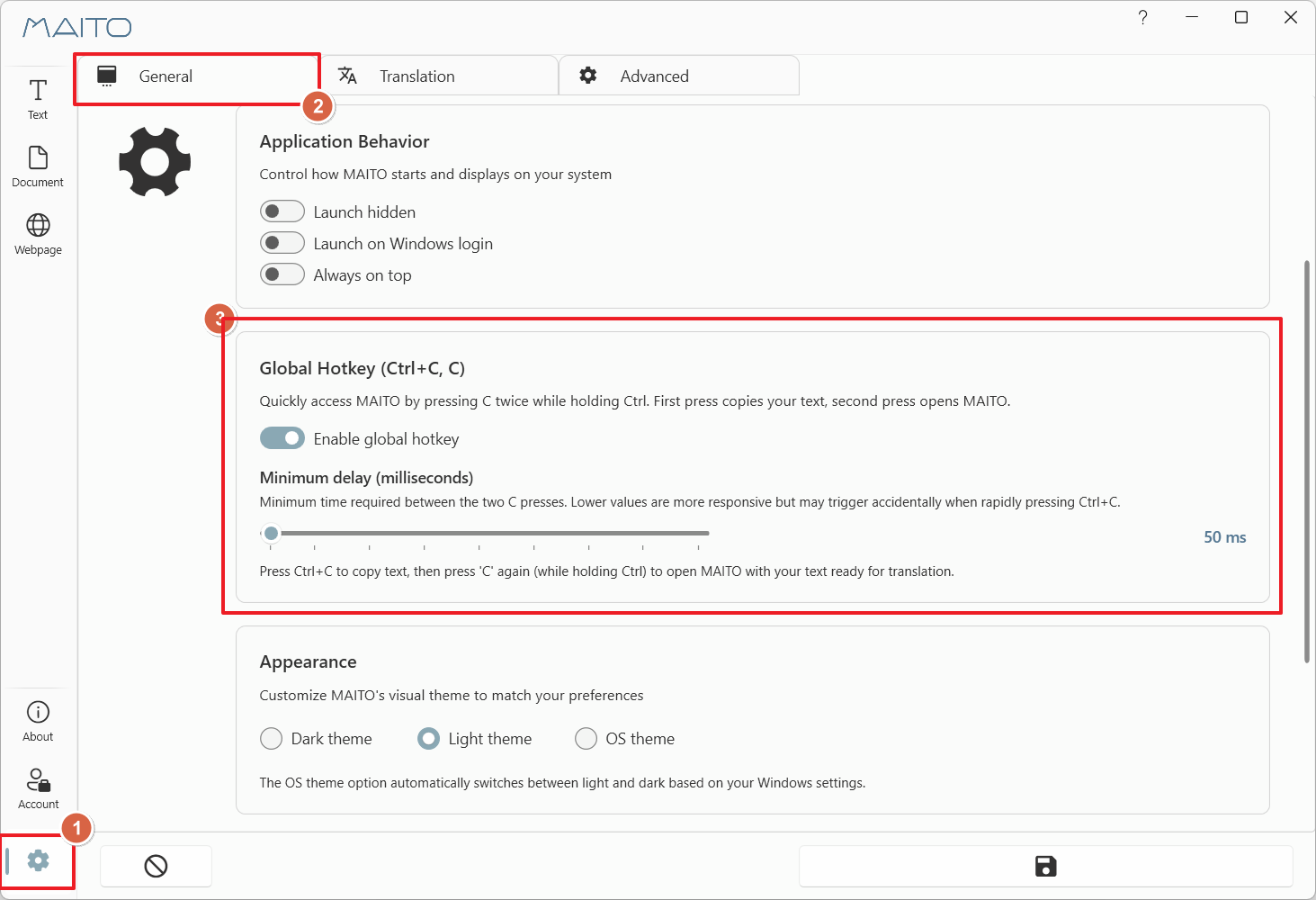
The global hotkey is enabled by default, but you can verify:
- Open MAITO Settings (gear icon ⚙️)
- Go to the General tab
- Find the Global Hotkey section
- Ensure “Enable Global Hotkey” is checked ✅
2. Select Text to Translate
In any application:
- Select text with your mouse, or
- Use keyboard shortcuts (Shift+Arrow keys), or
- Use Ctrl+A to select all text
3. Trigger the Hotkey
- Press Ctrl+C to copy the text (normal Windows copy)
- Quickly press C again (within 0.75 seconds)
- Release all keys
4. View Translation
- MAITO window opens automatically (if minimized)
- Translation appears in the Text Translation tab
- Original text is in the left panel
- Translated text appears in the right panel
Timing Is Key
You must press C within 0.75 seconds of pressing Ctrl+C. This timing is intentional to prevent accidental triggers. After some practice, it becomes second nature!
Timing Examples
✅ Correct Timing
Ctrl+C (copy) → C (within 0.75 sec) ✅
Translation triggers!
❌ Too Slow
Ctrl+C (copy) → [1 second pause] → C ❌
Nothing happens (timeout)
✅ Multiple Attempts OK
Ctrl+C → C (too slow) → Ctrl+C → C (correct!) ✅
Second attempt works fine
Advanced Tips
Translate Repeatedly
To translate the same text multiple times (e.g., to different languages):
- Copy text once (Ctrl+C)
- Press C to translate
- Change target language in MAITO
- Press C again to retranslate
The text remains in your clipboard until you copy something else.
Use with Text Selection
For long documents:
- Read through the document
- Select interesting passages as you go
- Ctrl+C, C to translate each one
- Continue reading
Combine with MAITO’s Auto-Detection
- Copy text in any language
- Trigger hotkey
- MAITO auto-detects the source language
- Translates to your default target language
Language Auto-Detection
MAITO automatically detects what language you copied, so you don’t need to manually select the source language. Just copy and trigger!
Translate from PDFs
PDF files often have copy restrictions or formatting issues:
- Select text in PDF (even if formatting is weird)
- Ctrl+C, C
- MAITO cleans up and translates the text
Quick Email Translation
Reading an email in a foreign language:
- Select key sentences
- Ctrl+C, C for each sentence
- Understand the email’s meaning
- Reply with confidence!
Customizing the Hotkey
Change the Timing Window
If 0.75 seconds feels too fast or too slow:
- Open Settings → General tab
- Find Global Hotkey Timing slider
- Adjust between 0.5 and 1.5 seconds
- Test until comfortable
Disable the Hotkey
If you don’t want the global hotkey:
- Open Settings → General tab
- Uncheck “Enable Global Hotkey”
- Click Apply
You can still use MAITO normally by manually pasting text into the translation window.
Cannot Change Keys
The specific keys (Ctrl+C, C) cannot be changed. This is intentional to avoid conflicts with other applications and maintain consistency. The timing window can be adjusted instead.
Troubleshooting
Hotkey Not Working
Check these common issues:
-
Hotkey disabled in Settings
- Open Settings → General
- Enable “Enable Global Hotkey”
-
MAITO not running
- Check system tray for MAITO icon
- Launch MAITO if closed
-
Timing too tight
- Practice the Ctrl+C, C rhythm
- Try increasing timing window in Settings
- Count “one-thou” between presses
-
Text not copied
- Ensure text is actually selected
- Verify Ctrl+C works in the application
- Some applications block text selection
Hotkey Triggers Accidentally
If the hotkey triggers when you don’t want it:
- Reduce timing window to 0.5 seconds (Settings)
- Be more deliberate with copy operations
- Disable hotkey when doing lots of copying
Translation Window Doesn’t Open
Solutions:
- Check MAITO is running in system tray
- Bring MAITO to foreground manually once
- Restart MAITO if window is stuck
Wrong Language Detected
If auto-detection picks the wrong language:
- Open MAITO window
- Manually select correct source language
- Next hotkey trigger will use your selection
- Or set source language to specific language (disables auto-detect)
Limitations
Clipboard Access
- Hotkey requires clipboard access (Ctrl+C)
- Works with text only (not images, files, etc.)
- Respects application copy restrictions
Application Support
Works in most applications, but some have limitations:
- Protected PDFs: May block text selection entirely
- DRM content: Some ebooks/documents prevent copying
- Remote Desktop: May have clipboard issues
- Virtual Machines: Clipboard sync can interfere
Text Length
Both engines support long texts:
- DeepL: Up to 130,000 characters per request
- Local AI: No practical limit (intelligent chunking handles any length)
MAITO processes all copied text, automatically chunking longer texts at natural boundaries.
For Long Texts
For very long documents, consider using copy-paste directly into MAITO’s text window, or use document translation for files.
Workflow Examples
Example 1: Research Papers
Reading English research paper as a non-native speaker:
- Read abstract → Select confusing sentence
- Ctrl+C, C → Understand meaning
- Continue reading → Translate more sentences as needed
- Complete paper with full comprehension
Example 2: International Business
Email from foreign client:
- Open email
- Select entire email body (Ctrl+A)
- Ctrl+C, C
- Read translation in MAITO
- Draft reply confidently
Example 3: Social Media
Interesting foreign-language tweet:
- Select tweet text
- Ctrl+C, C
- Understand content
- Continue scrolling
Example 4: Programming Documentation
Documentation in foreign language:
- Read code comments
- Select unclear comments
- Ctrl+C, C for instant translation
- Understand code faster
What’s Next?
Now that you’ve mastered the global hotkey:
- Adjust Formality - Control translation tone
- Translate Documents - For longer content
- Translate Websites - For web pages
Need Help?
- Check Troubleshooting Guide
- Contact support: contact@pangaia.software
Master the Ctrl+C, C pattern and MAITO becomes an invisible translation assistant, always ready when you need it!