

MAITO lets you control whether translations sound formal or informal - perfect for adapting content to your audience.
What Is Formality?
Formality controls the tone of translated text:
Formal (Respectful, professional)
- Business documents
- Official letters
- Professional emails
- Academic papers
- Legal documents
Informal (Casual, friendly)
- Personal messages
- Social media posts
- Friendly emails
- Blog posts
- Creative writing
Default (Contextual)
- MAITO decides based on source text
- Usually the best choice
- Balances natural-sounding output
DeepL Only
Formality control is only available when using DeepL Cloud Translation. Local AI does not support formality settings - it always produces neutral translations.
Formality Examples
Formal vs Informal
Source (English): “Can you send me the report?”
Formal (German): “Können Sie mir den Bericht senden?” Informal (German): “Kannst du mir den Bericht schicken?”
Source (English): “Thanks for your help!”
Formal (Japanese): “ご協力ありがとうございます。” Informal (Japanese): “手伝ってくれてありがとう!”
Language Support
Not all languages support formality control. MAITO automatically hides the formality option for languages that don’t distinguish between formal and informal registers.
Setting Formality
For Text Translation
- Open MAITO → Text Translation tab
- Select DeepL as your active engine
- Choose your target language
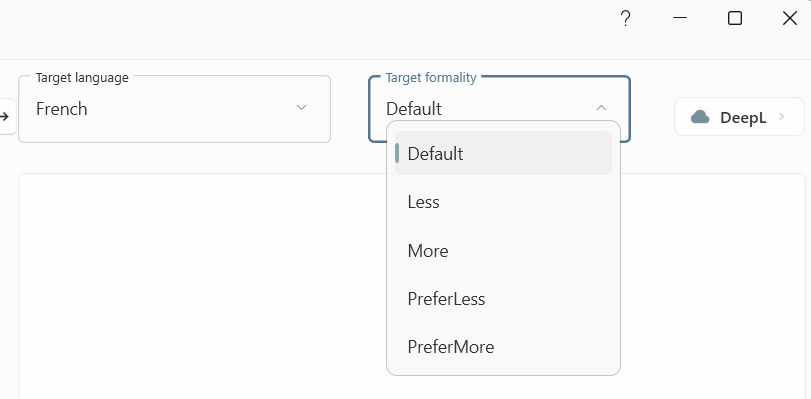
- Look for the Formality dropdown (below target language)
- Select your preference:
- Default (recommended)
- Formal
- Informal
- Translate as normal
For Document Translation
- Open MAITO → Documents tab
- Select your source and target languages
- Upload your document
- Before clicking Translate Document, find Formality dropdown
- Choose your preference
- Click Translate Document
The entire document will use your selected formality level.
Persistent Setting
MAITO remembers your formality preference for each language pair. If you always want formal German translations, set it once and MAITO will remember.
When to Use Each Level
Use “Default” When:
✅ You’re unsure which to choose
✅ Translating mixed content (formal and informal)
✅ The source text has natural formality cues
✅ Translating technical documentation
✅ General-purpose translation
Most Common Choice: Default works well in 80% of cases.
Use “Formal” When:
✅ Business correspondence
✅ Professional emails to clients/partners
✅ Legal documents
✅ Official letters
✅ Academic papers
✅ Corporate communications
✅ Addressing superiors or strangers
✅ Professional presentations
Example Scenarios:
- Translating a business proposal for Japanese clients
- Converting English contract to formal German
- Professional email to a French business partner
Use “Informal” When:
✅ Personal messages
✅ Social media posts
✅ Friendly emails to colleagues
✅ Blog posts or articles with casual tone
✅ Creative writing
✅ Chat messages
✅ Addressing friends or family
✅ Marketing content aimed at younger audiences
Example Scenarios:
- Translating a friendly email to a Spanish colleague
- Social media post for Italian audience
- Personal blog in French
Language-Specific Formality
Languages with Strong Formality Distinction
These languages have clear formal/informal differences:
- German: Sie (formal) vs du (informal)
- French: vous (formal) vs tu (informal)
- Spanish: usted (formal) vs tú (informal)
- Italian: Lei (formal) vs tu (informal)
- Japanese: Polite forms vs casual forms
- Portuguese: você/senhor (formal) vs tu (informal)
- Polish: Pan/Pani (formal) vs ty (informal)
- Dutch: u (formal) vs jij/je (informal)
Languages with Limited Formality
Some languages have less distinction:
- English: Limited formal/informal differences
- Chinese: Context-dependent more than grammatical
For these languages, the formality setting may have minimal effect.
Cultural Appropriateness
Using correct formality shows cultural awareness and respect. In Japanese business contexts, for example, using informal language can be considered disrespectful.
Formality with Global Hotkey
When using the Ctrl+C, C hotkey:
- MAITO uses your last-selected formality for that language pair
- To change formality for hotkey translations:
- Open MAITO window
- Change formality dropdown
- Next hotkey translation uses new setting
- Setting persists for future hotkey use
No need to change formality before each hotkey translation - it remembers!
Troubleshooting
Formality Dropdown Missing
Possible Causes:
- Using Local AI: Formality only works with DeepL
- Language doesn’t support formality: Not all languages have formal/informal distinction
- Wrong target language: Check you’ve selected a formality-supporting language
Solution:
- Switch to DeepL engine
- Verify target language supports formality
- Contact support if option should appear but doesn’t
Formality Doesn’t Seem to Work
Check:
- Ensure you’re using DeepL (not Local AI)
- Verify API key is valid
- Check target language supports formality
- Try obvious example (e.g., “Can you help?” to German)
If Still Not Working:
- Clear cache (Settings → Advanced)
- Restart MAITO
- Contact support with example text
Wrong Formality in Output
Possible Causes:
- Source text has strong formality cues that override setting
- Language ambiguity in detection
- DeepL’s interpretation differs from expectation
Solutions:
- Try more explicit source phrasing
- Use “Formal” or “Informal” instead of “Default”
- Add context to source text
- Consider manual adjustment of translation
Not Perfect
Formality control is a guide, not absolute. DeepL may occasionally produce unexpected formality if the source text has strong contextual cues. Always review critical translations!
Best Practices
Business Translation Workflow
- Default for drafts: Use Default to get natural translations
- Review audience: Consider who will read the translation
- Adjust formality: Change to Formal for clients/executives
- Review output: Ensure tone matches expectations
- Save favorites: MAITO remembers per language pair
Personal Use Workflow
- Set once: Choose Informal for casual languages (friends, social media)
- Leave Default: For most other use cases
- Switch rarely: Only change when context clearly requires it
Professional Translator Workflow
- Analyze source: Determine source text formality
- Match appropriately: Formal → Formal, Informal → Informal
- Use Default sparingly: When source formality is ambiguous
- Human review: Always review machine translation output
- Client preference: Ask clients for formality preferences
Combining Formality with Other Features
Formality + Document Translation
- Entire document uses one formality level
- Choose based on document purpose
- Formal: Contracts, reports, professional docs
- Informal: Blog posts, casual content
- DeepL only: documents translated with Local AI always come out in a neutral tone. If tone matters for a document, translate it with DeepL
Formality + Website Translation
- Set formality before translating website
- Consider website audience
- B2B websites → Formal
- B2C, lifestyle, blogs → Informal or Default
Formality + Auto-detection
- Auto-detect source language still works
- Formality applies to target language only
- Great for multi-language environments
What’s Next?
Related articles:
- Translate Documents - Using formality with documents
- DeepL vs Local - Understanding engine differences
- Get DeepL Key - Setting up DeepL
- Use Global Hotkey - Quick translations with formality
Need Help?
For formality questions:
- Contact support: contact@pangaia.software
- Check Troubleshooting Guide
- Visit DeepL documentation