

MAITO can translate entire documents while preserving their formatting, layout, and structure - perfect for contracts, reports, presentations, and more.
Supported File Types
MAITO supports five document formats:
- DOCX - Microsoft Word documents
- PDF - Adobe PDF files
- PPTX - Microsoft PowerPoint presentations
- HTML - Web pages saved as HTML
- TXT - Plain text files
DeepL Required
Document translation currently requires DeepL Cloud Translation. Local AI only supports text translation. However, you can drag-and-drop documents onto the Text Translation page to extract and translate their content.
Prerequisites
Before translating documents:
- DeepL API Key configured - Get API Key Guide
- DeepL engine active - Switch to DeepL
- Sufficient quota - Check your remaining characters
Step-by-Step Guide
1. Open Documents Tab
- Launch MAITO
- Click the Documents tab
- Ensure DeepL is your active engine

2. Select Languages
- Choose source language (or use Auto Detect)
- Choose target language
- Languages are remembered for next time
3. Upload Your Document
You have two options:
Option A: Drag and Drop
- Drag your document file from Windows Explorer
- Drop it onto the upload area
Option B: File Browser
- Click Browse or Select File button
- Navigate to your document
- Select it and click Open
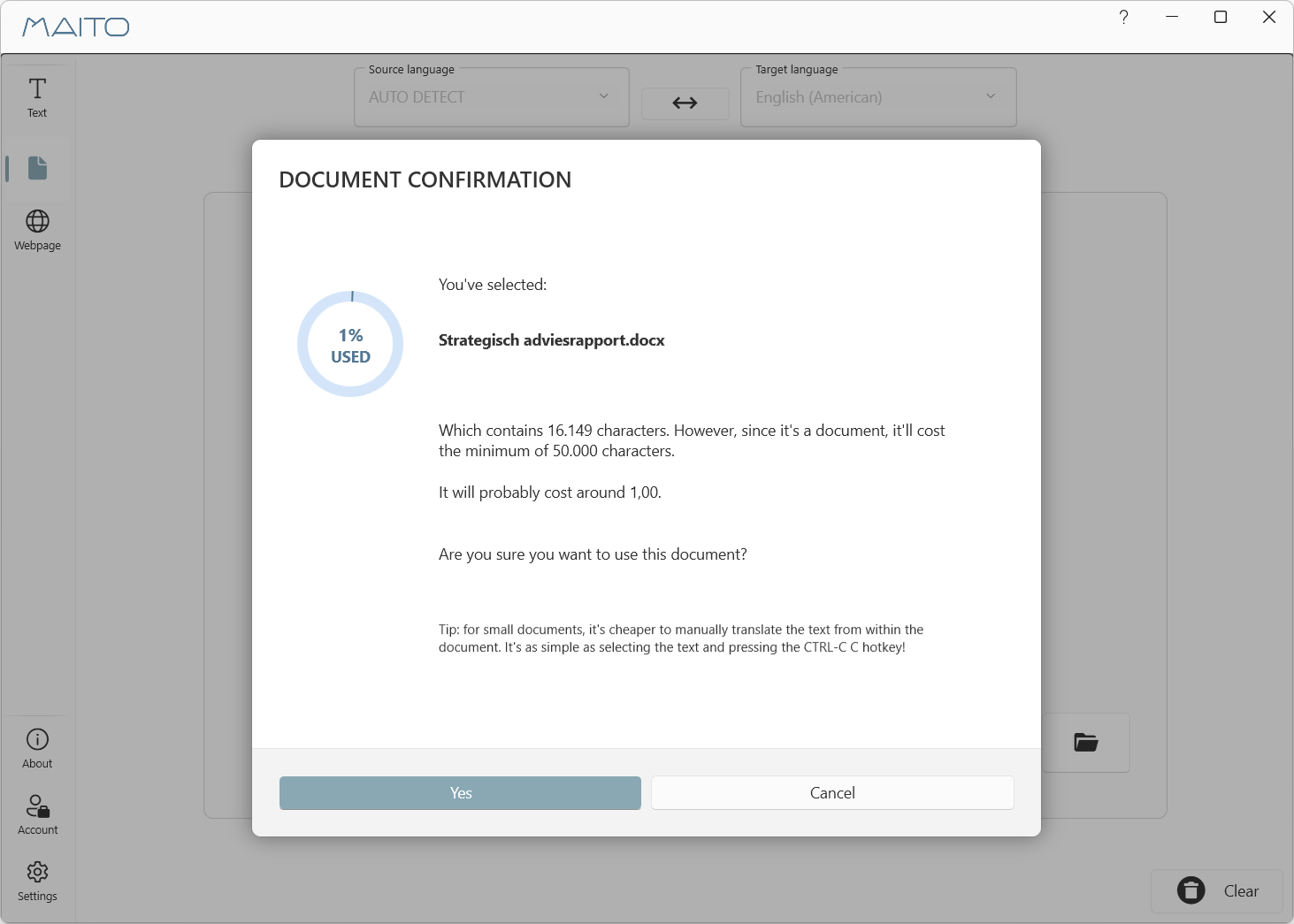
When you have dropped or selected a document, MAITO will advise you if it’s cheaper to translate the content through the Text page. This is because DeepL charges a minimum of 50.000 characters for a document.
4. Start Translation
- Review the document name
- Check languages are correct
- Click the Translate button
- Wait for translation to complete
5. Download Translated Document
- When translation completes, download button appears
- Click Download to save translated document
- Translated document has same format as original
- Original formatting is preserved
Formatting Preserved
MAITO (via DeepL) preserves all formatting: fonts, styles, images, tables, headers, footers, and page layout. The translated document looks just like the original!
Document Limitations
File Size Limits
Different file types have different size limits:
| File Type | Maximum Size | Typical Page Count |
|---|---|---|
| DOCX | 10 MB | ~100-200 pages |
| 10 MB | ~100-200 pages | |
| PPTX | 10 MB | ~50-100 slides |
| HTML | 5 MB | Varies |
| TXT | 5 MB | Varies |
Content Limitations
- Scanned PDFs: Must have selectable text (OCR not included)
- Protected PDFs: Cannot translate password-protected or DRM files
- Editable PDFs: Work best (form fields, annotations)
- Images: Not translated (remain in original language)
- Complex Layouts: May have minor formatting issues
For Scanned PDFs
If you have a scanned PDF without selectable text, use an OCR tool first to convert it to searchable PDF, then translate with MAITO.
Character Counting
Document translations count toward your DeepL character quota:
- MAITO shows character count before translation
- You can review estimated cost (Pro plans)
- Translation only proceeds if you have sufficient quota
Example:
- 5-page Word document ≈ 2,500-5,000 characters
- 20-page PDF ≈ 10,000-20,000 characters
- 10-slide presentation ≈ 500-2,000 characters
Translation Speed
Document translation speed varies by:
- File size: Larger files take longer
- DeepL server load: May vary by time of day
- Internet speed: Affects upload/download
Typical timing:
- 5-page document: 30-60 seconds
- 20-page document: 2-5 minutes
- 50-page document: 5-10 minutes

Using Formality Control
For documents, you can adjust translation formality:
- Before clicking Translate Document
- Find the Formality dropdown
- Choose:
- Default: Natural, contextual formality
- Formal: Professional, respectful tone
- Informal: Casual, friendly tone
- Then click Translate Document
When to Use Formality
- Formal: Contracts, legal documents, business reports, official letters
- Informal: Personal letters, blog posts, creative content
- Default: Technical docs, general content (recommended)
Alternative: Extract Text Method
If you’re using Local AI or just need the text content:
- Go to Text Translation tab
- Drag-and-drop your document onto the text area
- MAITO extracts all text content
- Translate as regular text
- Copy translated text
Pros:
- Works with Local AI
- No DeepL quota used (if using Local)
- Can edit text before translating
Cons:
- Loses formatting, layout, images
- Manual work to reassemble document
- Not suitable for formatted documents
Troubleshooting
”File Too Large” Error
Solution:
- Check file size against limits
- Compress document (remove high-res images)
- Split into smaller files
- Extract text instead
”Unsupported Format” Error
Solution:
- Verify file extension (must be .docx, .pdf, .pptx, .html, .txt)
- Convert to supported format
- Remove file corruption
”Translation Failed” Error
Possible causes:
- Insufficient DeepL quota
- Internet connection lost
- DeepL service temporarily unavailable
- File contains no translatable text
Solution:
- Check DeepL quota/API key
- Verify internet connection
- Try again in a few minutes
- Contact support if persists
”Cannot Extract Text” Error
For PDFs:
- File may be scanned (no text layer)
- File may be protected/encrypted
- Use OCR tool first
- Try extracting text manually
Formatting Issues in Output
Common issues:
- Tables slightly misaligned
- Font sizes vary
- Line breaks extra/missing
Solutions:
- Minor cleanup in Word/PowerPoint
- Check source document wasn’t corrupted
- Report persistent issues to support
Check Before Final Use
Always review translated documents before final use. While formatting is generally preserved, complex layouts may need minor adjustments.
Best Practices
Before Translation
- Review source document for errors
- Check character count vs. quota
- Consider formality setting for audience
- Verify correct languages selected
After Translation
- Review translated document for accuracy
- Check formatting is acceptable
- Proofread critical sections
- Save original and translated versions
For Professional Use
- Use Pro plan for important documents
- Human review for legal/medical content
- Test with sample document first
- Keep backups of originals
Comparing with Other Methods
MAITO vs Manual Copy-Paste
MAITO Advantages:
- Preserves formatting automatically
- Faster for long documents
- Batch processing possible
- Original structure maintained
Manual Advantages:
- More control over translation
- Can edit during translation
- Works with any engine (Local AI)
MAITO vs DeepL Website
MAITO Advantages:
- Desktop integration
- Faster workflow (no browser)
- Global hotkey support
- Combined with text translation
DeepL Website Advantages:
- No local installation
- Access from any computer
- Additional file formats
What’s Next?
Explore more MAITO features:
- Translate Websites - Extract web content
- Adjust Formality - Control tone
- Understanding Costs - DeepL pricing
- Switch Engines - Use Local AI too
Need Help?
For document translation issues:
- Check Troubleshooting Guide
- Review DeepL vs Local comparison
- Contact support: contact@pangaia.software