

MAITO’s local translation is its standout feature - translate completely offline with complete privacy using AI models running on your own computer.
What You’ll Need
Before configuring local translation:
- Windows x64 system
- Minimum 4GB RAM (8GB+ recommended)
- 2-8GB free disk space for models
- 5-10 minutes for initial model download
No API Key Required
Unlike DeepL, local translation requires no API key, no subscriptions, and no internet connection. Once configured, you can translate completely offline forever!
Two Ways to Configure
MAITO offers two configuration paths:
Auto Configuration (Recommended)
Perfect for most users:
- MAITO assesses your hardware automatically
- Downloads the best model for your system
- Validates installation
- Runs performance test
- Takes 5-10 minutes total
Manual Configuration
For advanced users who want control:
- Review hardware assessment
- Choose specific model to download
- Configure manually
- Requires understanding of model types
Start with Auto
We recommend starting with Auto configuration. You can always download additional models later from Settings if you want to experiment.
Configuration via Onboarding
If This Is Your First Time
When you first launch MAITO, the onboarding wizard will guide you:
- Choose Translation Engine → Select “Local AI Translation”
- Choose Configuration Type → Select “Auto (Recommended)”
- Device Assessment → MAITO analyzes your hardware
- Model Download → Automatic download begins
- Performance Test → 30-second benchmark
- Complete → Start translating!
Configuration via Settings
If You’re Adding Local Translation Later
If you initially chose DeepL and want to add local translation:
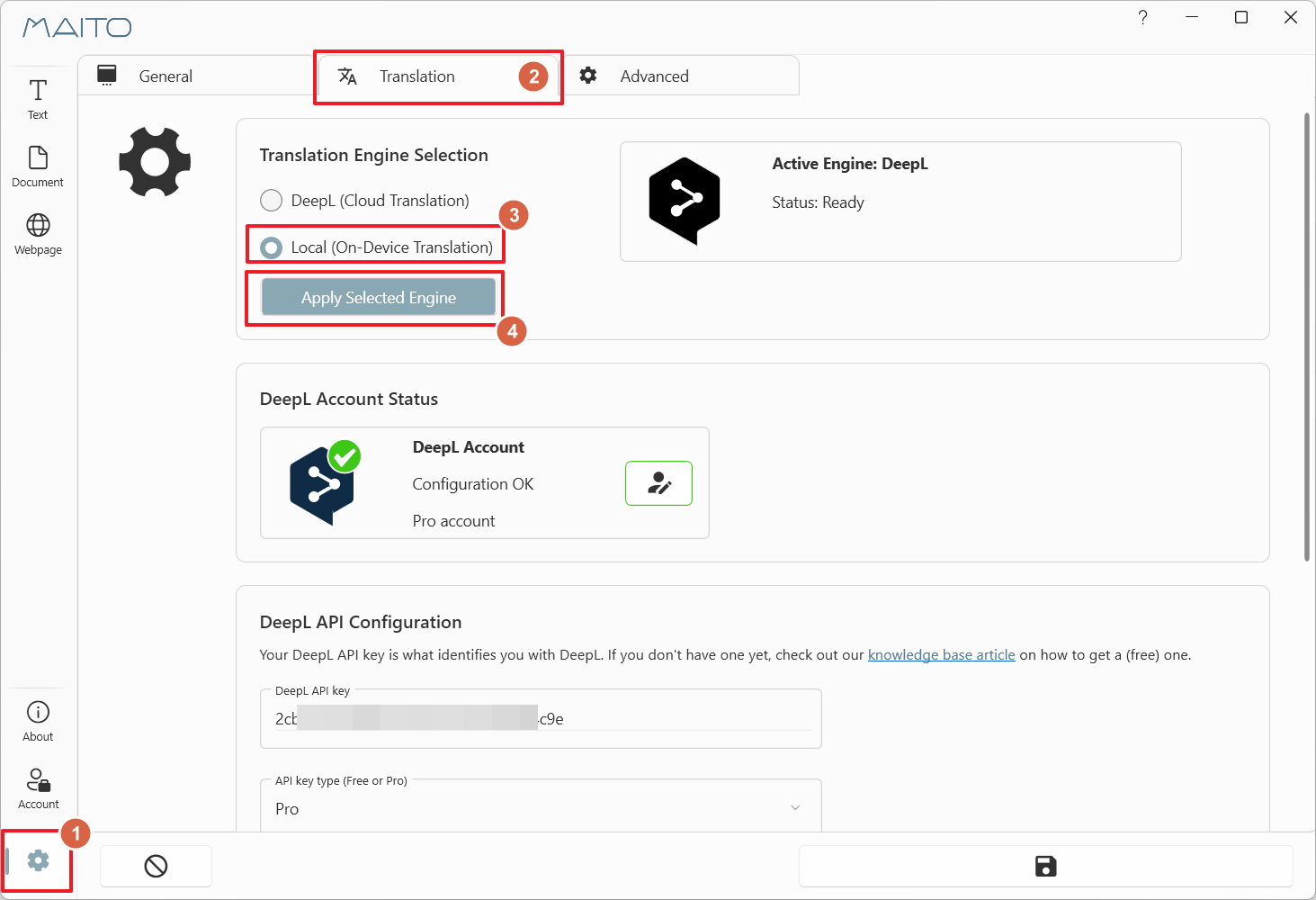
- Click the gear icon (⚙️) to open Settings
- Navigate to the Translation tab
- Select Local On-Device Translation radio button
- Click Apply Selected Engine
- The configuration wizard will appear
Don't Show Wizards Again
If you see a prompt asking about showing the configuration wizard, choose “Yes, please” for guided setup. Advanced users can choose “No thank you” and configure manually in Settings.
Understanding Device Assessment
MAITO analyzes your hardware to recommend the optimal model:
Hardware Analyzed
CPU Detection
- Processor model and generation
- Number of cores and threads
- Support for special instructions (AVX2, etc.)
RAM Detection
- Total installed RAM
- Available free RAM
- Memory speed
GPU Detection (if available)
- GPU vendor (NVIDIA, AMD, Intel)
- VRAM amount
- DirectML compatibility
Performance Ratings
MAITO assigns an overall performance rating:
| Rating | Meaning | What to Expect |
|---|---|---|
| Excellent | High-end system, 16GB+ RAM, good GPU | 10-20+ tokens/second, smooth experience |
| Good | Mid-range system, 8-12GB RAM | 5-10 tokens/second, good performance |
| Fair | Entry-level system, 6-8GB RAM | 2-5 tokens/second, usable |
| Poor | Low-end system, 4-6GB RAM | 0.5-2 tokens/second, slow but functional |
| Inadequate | Very limited system, <4GB RAM | Local translation not recommended |
Inadequate Rating
If you receive an “Inadequate” rating, MAITO will still let you proceed, but local translation will be very slow. Consider using DeepL instead, or upgrading your hardware.
Model Recommendations
Based on your hardware assessment, MAITO recommends a model:
Rosetta Models (Recommended)
MAITO automatically recommends Rosetta models - custom-trained translation models optimized by us:
Rosetta 4B CPU (2.5GB)
- Optimized for CPU-only systems
- Runs on any Windows x64 system
- Best all-around compatibility
- Recommended for most users
Rosetta 4B DML (2.5GB)
- Optimized for DirectML (GPU acceleration)
- Requires compatible GPU
- Faster translation speeds
- Recommended if you have a GPU
Key Features:
- Trained on 32 languages
- Optimized for translation quality
- Small model size (2.5GB)
- Fast inference speeds
Why Rosetta?
Rosetta models are specifically trained for translation across 32 languages, and optimized by us to run on average hardware. They provide better translation quality and faster speeds than general-purpose models like Phi-3.
Auto Configuration Walkthrough
Let’s walk through the auto-configuration process step-by-step:
Phase 1: Device Assessment (10-30% progress)
MAITO analyzes your hardware:
- Detects CPU capabilities
- Checks available RAM
- Scans for compatible GPUs
- Calculates performance rating
Time: 5-10 seconds
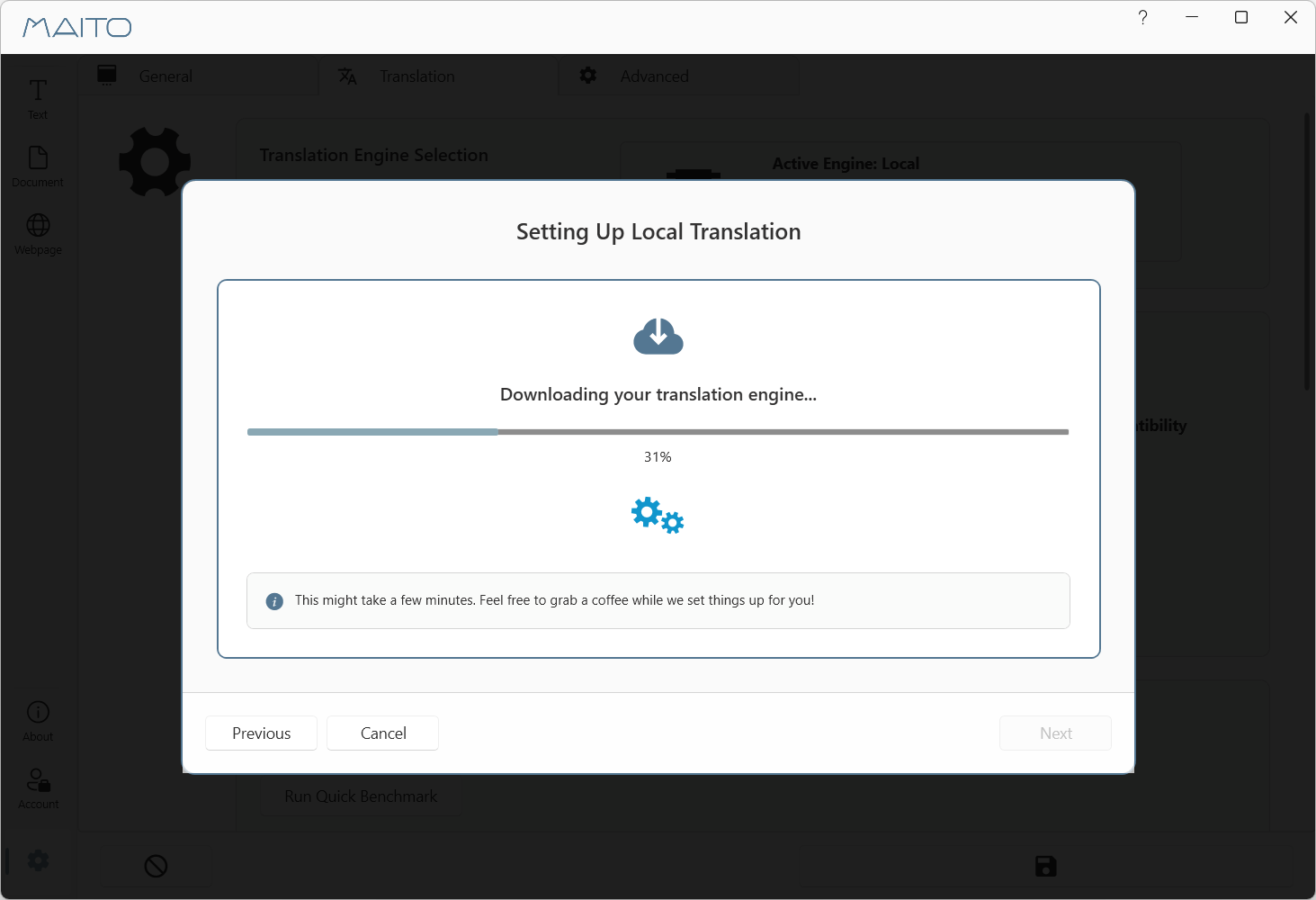
Phase 2: Model Download (30-70% progress)
MAITO downloads the recommended model:
- Selects best model for your hardware
- Downloads from secure servers
- Shows real-time download progress
- Typical size: 2.5GB (Rosetta models)
Time: 3-8 minutes (depending on internet speed)
Download Speeds
Model downloads typically take:
- Fast connection (50+ Mbps): 3-4 minutes
- Medium connection (20-50 Mbps): 5-7 minutes
- Slow connection (<20 Mbps): 8-15 minutes
Phase 3: Model Validation (75-80% progress)
MAITO validates the downloaded model:
- Verifies file integrity
- Tests model can be loaded
- Saves configuration to settings
Time: 10-20 seconds
Phase 4: Performance Test (85-100% progress)
MAITO runs a 30-second benchmark:
- Translates sample text
- Measures translation speed (tokens/second)
- Provides performance rating
- Validates everything works
Time: 30 seconds
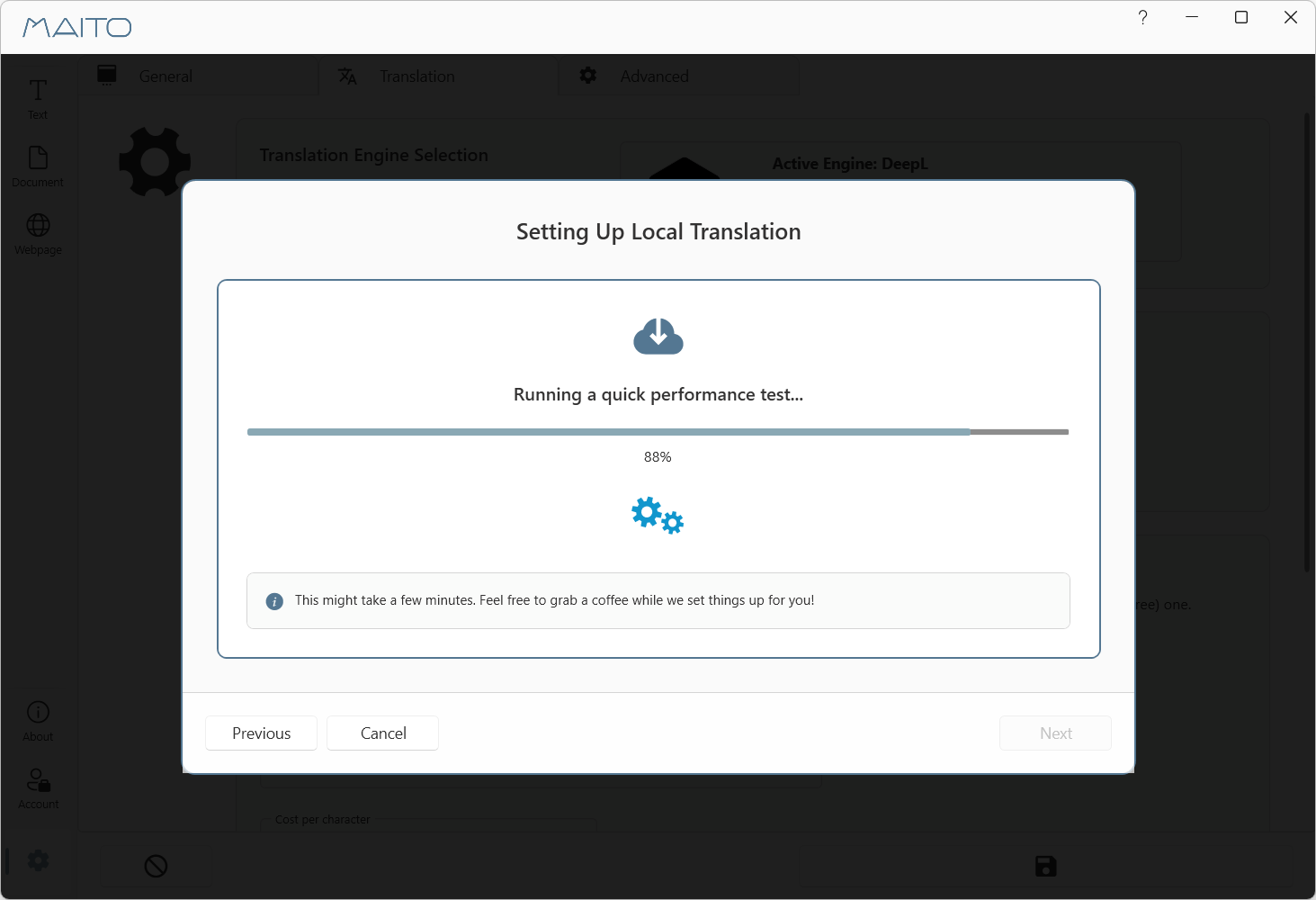
After the benchmark, you’ll see the result of the benchmark, to give an indication of what you can expect performance-wise. Not that this does not impact the quality of the translations, only the speed in which translation happens.
What Do Tokens/Second Mean?
You may come across a metric called Tokens/Second when benchmarking AI models. This translates to the following:
- 20+ tokens/sec: Excellent - near-instant translations
- 10-20 tokens/sec: Good - smooth, responsive experience
- 5-10 tokens/sec: Fair - some wait time, but usable
- 2-5 tokens/sec: Poor - noticeable delays
- <2 tokens/sec: Slow - use for short texts only
Tokens vs Words
A “token” is roughly equivalent to 4 characters or about 3/4 of a word. So 10 tokens/second ≈ 7-8 words/second.
Manual Configuration
If you choose manual configuration:
Step 1: Review Hardware Assessment
Review the device assessment screen showing your hardware capabilities.
Step 2: Model Selection Screen
Browse available models:
- Model Name: e.g., “Pangaia Software Rosetta 4B CPU”
- Size: e.g., “2.5 GB”
- Compatibility: CPU-only, GPU-accelerated, etc.
- Recommendation: MAITO suggests models with a star icon ⭐
Step 3: Download Model
Select a model and click Download:
- Monitor download progress
- Cancel and retry if needed
- Model is saved to:
%APPDATA%\Pangaia Software\MAITO\Models
Step 4: Set as Default
After download completes:
- Click Set as Default to use this model
- Or keep browsing to download more models
Step 5: Optional Benchmark
Run a benchmark to test performance:
- Click Run Benchmark
- Wait 30 seconds for results
- See tokens/second performance
Verifying Configuration
To verify local translation is working:
- Open MAITO main window
- Go to Text Translation tab
- Look for engine indicator showing “Local”
- Type a test phrase (e.g., “Hello, world!”)
- Click Translate
- You should see:
- Translation appears gradually (streaming)
- No cost information (unlike DeepL)
You're Offline!
Once configured, you can disconnect from the internet entirely and MAITO will still translate using the local AI model. Your translations never leave your computer!
Troubleshooting
”Download Failed” Error
Solutions:
- Check your internet connection
- Verify firewall isn’t blocking MAITO
- Retry the download
- Manually download from Settings later
”Insufficient Memory” Error
Solutions:
- Close other applications to free RAM
- Restart your computer
- Choose a smaller model
- Consider adding more RAM to your system
”Model Loading Failed” Error
Solutions:
- Verify model downloaded completely
- Check disk space (models need 2-8GB)
- Try downloading the model again
- Contact support if issue persists
Very Slow Performance
Solutions:
- Your system may not meet minimum requirements
- Close background applications
- Try the CPU-optimized model
- Consider using DeepL instead for better experience
Automatic Memory Management
MAITO automatically adjusts memory allocation based on your available RAM. Lower-end systems get reduced context windows to prevent crashes, which may affect very long text translations.
What’s Next?
Now that local translation is configured:
- Verify It’s Truly Offline - Confirm no data is sent
- Download More Models - Try different models
- Benchmark Performance - Compare model speeds
- Manage Disk Space - Remove unused models
- Understanding Local Translation - Learn how it works
- Switch Between Engines - Use both DeepL and Local
Need Help?
If you encounter issues configuring local translation:
- Check our Troubleshooting Guide
- Review Why Is Local Slow
- Contact support: contact@pangaia.software